Guides
A family document scanning workflow overview
This family document scanning workflow overview follows a home archive from sorting and pilot scans through file naming, quality checks, metadata, and backups.
What to take away
- This fictional case illustrates a planning-level workflow for a home archive, not a scanner-settings recipe.
- Fragile pages, bound items, photographs, and routine office paper need different capture paths.
- A pilot batch helps compare capture approaches, but this overview does not prescribe scanner-specific settings.
- Naming, quality control, metadata, and backups took more time than feeding pages.
- Digital copies improved access but did not justify discarding the originals.
Maya inherited two boxes of family documents: letters, certificates, photo prints, and school records. She also found receipts and a small bound diary, and wanted her family document scanning workflow to provide searchable access for relatives without repeatedly handling the originals. She did not need museum-grade reproduction of every receipt, but did want careful treatment of unique material.
The home printer and scanner buying guide covers choosing the feeder, flatbed, and software for this job.
Define purpose and limits
Maya divided the collection into four goals:
- Preserve a faithful digital master of unique letters and photographs.
- Create convenient PDFs for ordinary records.
- Add enough description to find people, dates, and events.
- Keep at least three copies of the completed digital collection.
She set a rule that no original would be cut, unstapled, flattened, cleaned, repaired, or fed through rollers merely to speed the project. Items with mold, active pests, severe brittleness, stuck photographs, or uncertain safety were isolated for professional advice. For items outside her safe handling limits, she did not substitute home experimentation for qualified preservation advice.
Sort without losing order
Maya photographed each box and folder before rearranging anything. She assigned a simple collection code, container number, folder number, and item sequence. A paper log connected the old order with the new identifier.
She grouped by handling and capture method rather than subject alone:
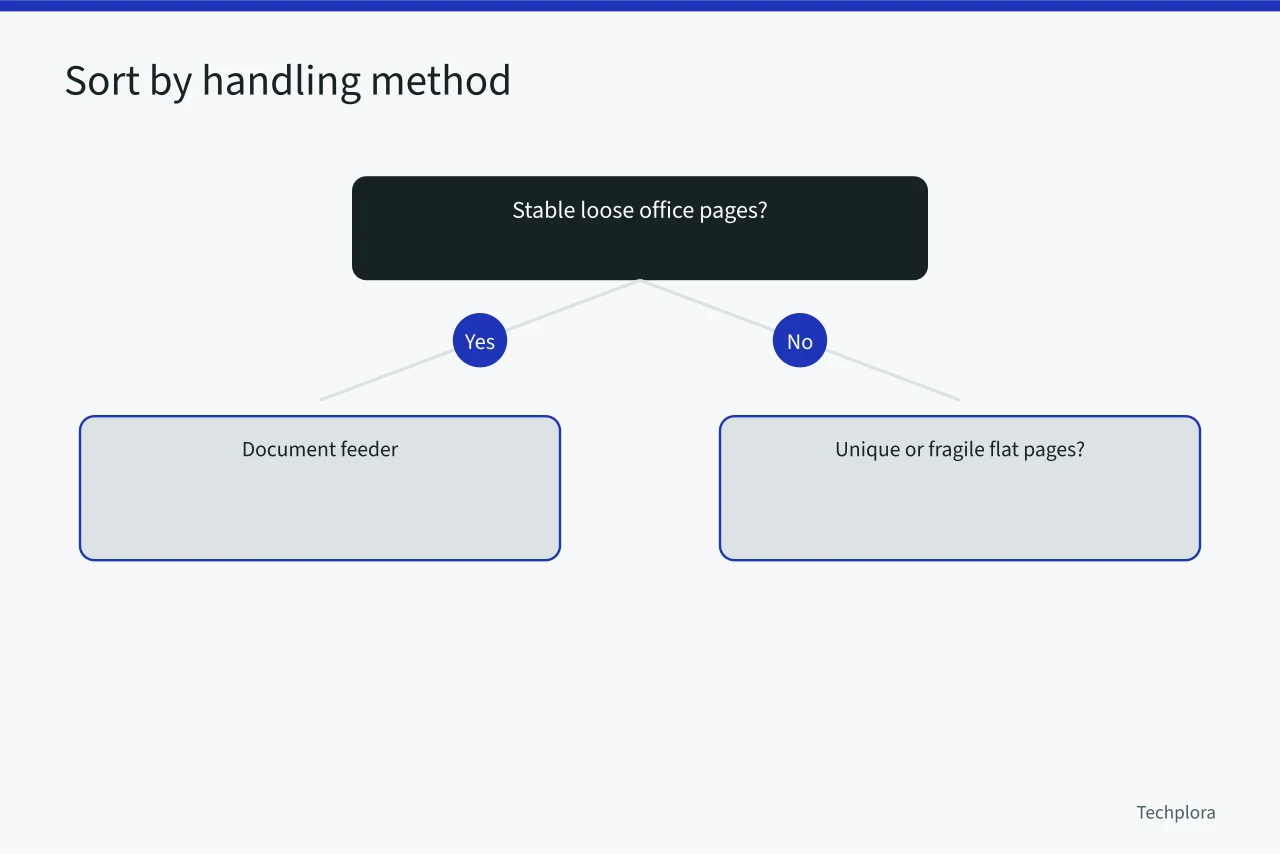
The National Archives guide to digitizing family papers and photographs advises keeping originals since digital files can be lost. Fit flat items fully on the scanner, avoid forced book openings, and skip automatic feeders for fragile, weak, bent, or important papers.
It also recommends useful naming, basic who-what-where-when metadata, and three copies on two media, one off-site.
Create a pilot batch
Maya selected ten varied items before buying large storage or scanning hundreds of pages. The batch contained faded pencil, typed text, a color certificate, a dark photograph, a thin receipt, a two-sided letter, a stapled packet, and two diary pages.
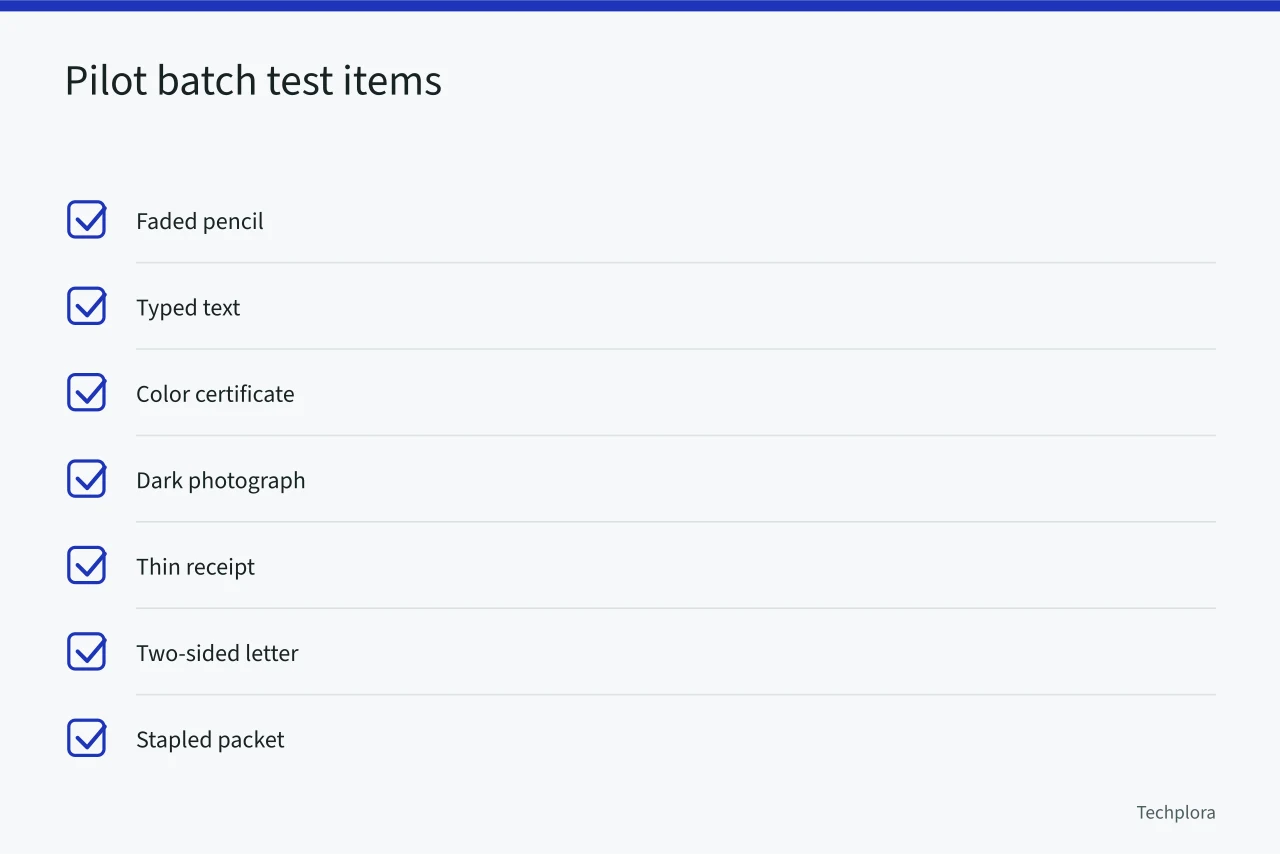
For each, she tested capture resolution, color mode, file size, readable detail, processing time, and whether the original lay safely. She viewed files at 100 percent, zoomed into small writing, and printed one access copy. The pilot helped her compare settings and choose a workable approach for each material class; this overview does not prescribe scanner-specific resolution, color, or bit-depth values.
Separate masters from access copies
The master preserved the full page, color or tonal information, orientation, and margins without aggressive cleanup. Maya used lossless or minimally processed image masters for unique visual items. She created smaller JPEG or PDF access copies for sharing and searchable multipage PDFs for routine text.
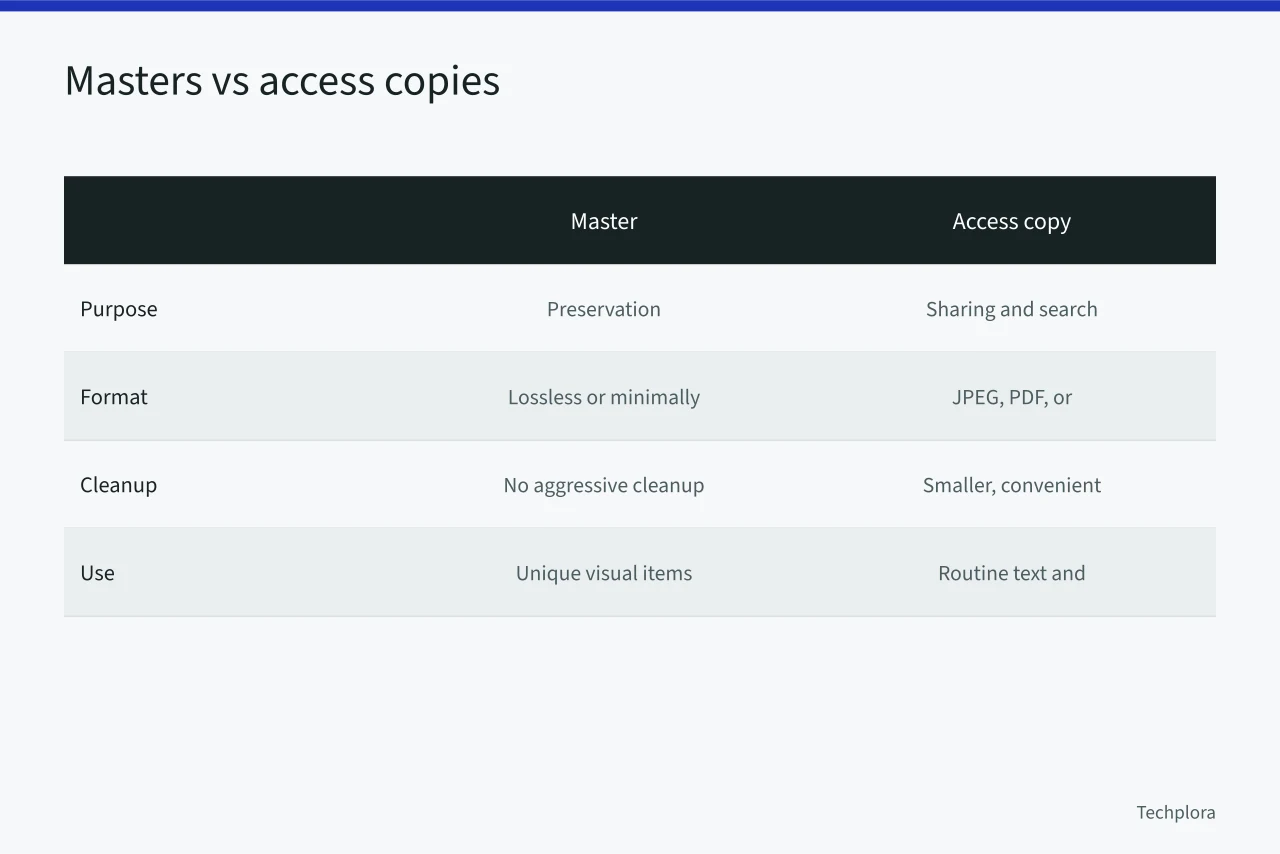
The Library of Congress description of PDF/A for long-term preservation explains the family's purpose. The family preserves the static appearance of page-oriented documents through device independence and self-contained resources.
It notes that when a PDF/A comes from scanned page images, the source images are usually considered the masters if available. Maya therefore did not treat one convenient PDF as the only preservation copy.
She recorded software and settings in a project note. Optical character recognition created a search layer, but she did not let it replace the page image. Names, handwriting, columns, faded text, and unusual spelling all required review.
Use a stable naming scheme
Maya used fixed-width identifiers such as:
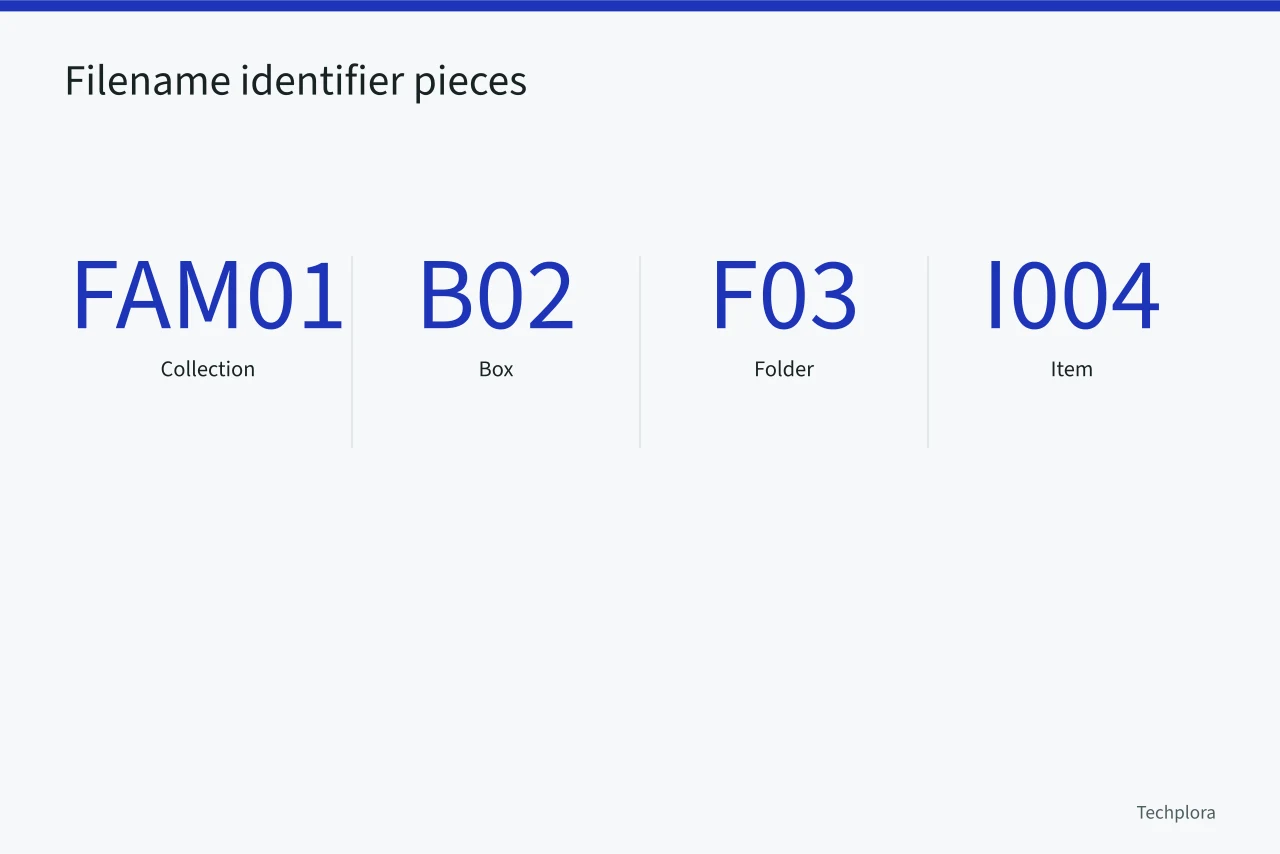
FAM01_B02_F03_I004_P001_master.tif
The pieces meant collection, box, folder, item, page, and role. Access copies kept the same base identifier with an access role. She avoided names based only on a guessed person or date, since later research could correct those descriptions.
A spreadsheet stored identifier, original container, item description, names, dates, place, page count, rights note, capture date, operator, equipment, settings, master filename, and access filename. The filename identified the object; metadata described it.
Capture in small controlled batches
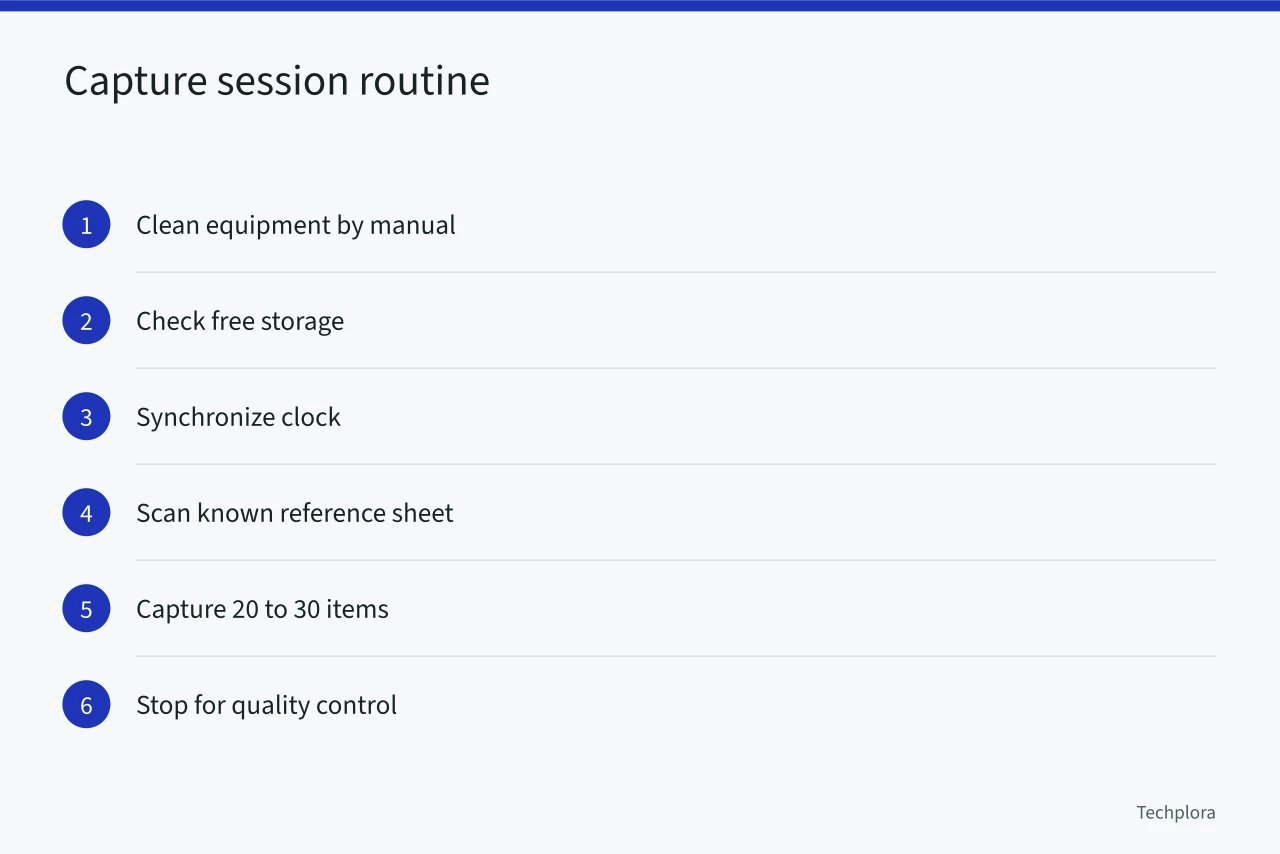
Before each session, Maya cleaned the equipment by its manual, checked free storage, synchronized the clock, and scanned a known reference sheet. She captured 20 to 30 items, then stopped for quality control.
Large unattended feeder batches made it easy to miss two pages pulled together. Double feeds and stray feeder lines are classic printer and scanner problems worth knowing in advance.
She wore clean dry hands for stable paper and followed specialist advice for sensitive photographs. She kept food, drinks, pens, adhesive notes, and loose jewelry away. Originals moved from an "unscanned" folder to "captured, pending review" and then to "checked," so nothing relied on memory.
Quality control every batch
Maya checked:
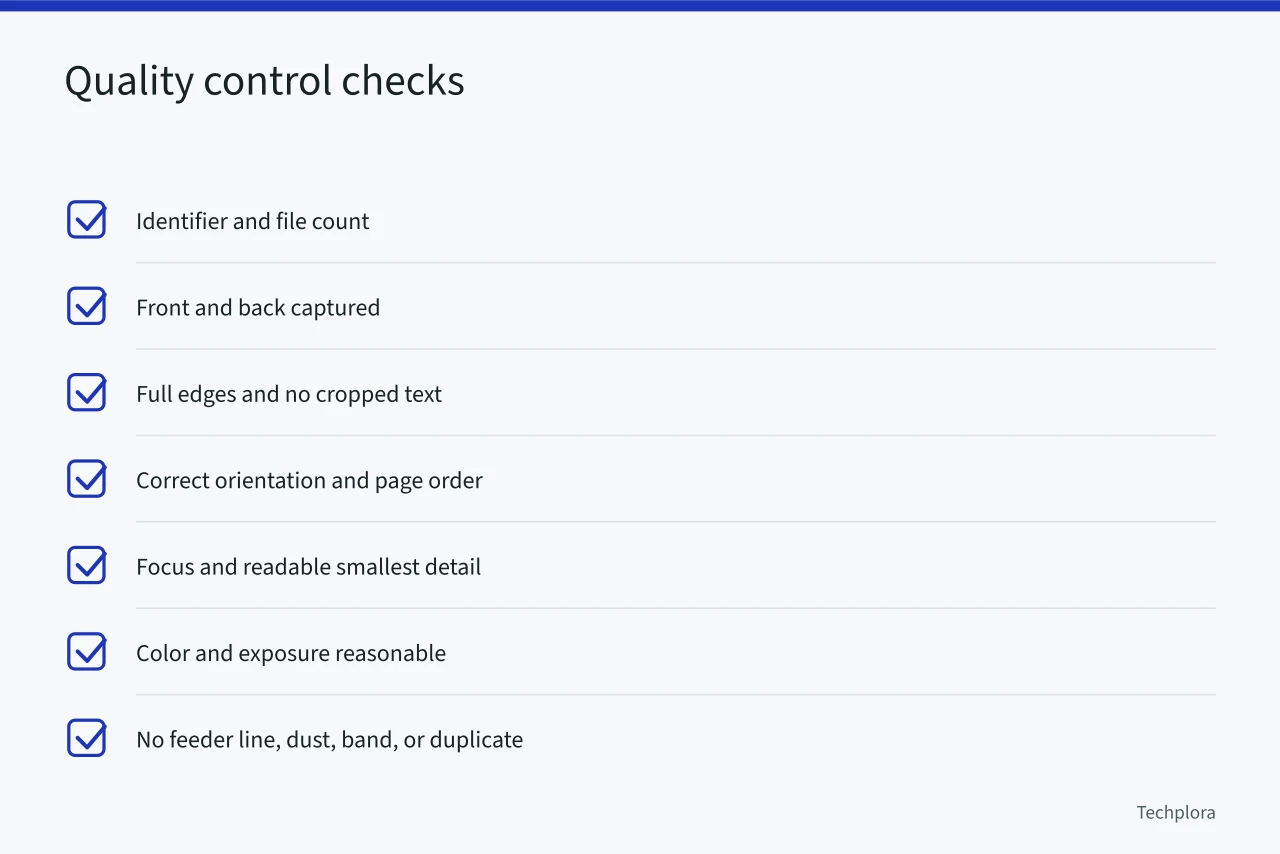
She rescanned from the original before returning it to storage. Editing could not restore an edge that was never captured.
Back up before returning originals
At the end of each approved batch, Maya copied masters, access files, spreadsheet, and project notes to a second local medium and an off-site location. She verified counts and opened samples from each copy. Sync was not her only backup because accidental deletion could synchronize too. Independent copies made it possible to restore files if one copy was lost or damaged.
She kept originals in labeled enclosures and preserved the box and folder relationships. Digital access reduced handling, but the physical documents remained the source and carried paper, ink, impressions, and context the scan might not capture.
Final workflow
| Stage | Output |
|---|---|
| Inventory | Box photos, identifiers, order log |
| Pilot | Approved settings by material class |
| Capture | Master files and session notes |
| Processing | Rotated access copies and OCR |
| Quality control | Checked file and item counts |
| Description | Spreadsheet metadata |
| Preservation | Three verified copies and retained originals |
Common questions
Should every document be scanned at the highest setting?
No. Test the smallest important detail, original type, scanner performance, file size, and use. Interpolated numbers do not create detail.
Can I put old letters through a document feeder?
Not when they are fragile, weak, bent, important, or otherwise unsuitable. Use a safer supported capture method.
Is OCR the same as a faithful scan?
No. OCR is interpreted text and can be wrong. Keep the page image and review important text.
Can I discard originals after making three backups?
Digital copies have their own risks and may omit physical information. Preserve originals unless qualified appraisal and legal or records guidance supports another decision.