Maintenance
Part of Digitizing a family collection costs more after the scanner than before it
Silent media decay in digitization: why media that works can still be near failure
Why media that reads today can still be near failure, how error correction hides decay, and what routine checks and kept originals do to prevent loss.
What to take away
- A disc or drive that reads correctly today can be close to failure. Error correction hides the decline until it cannot.
- Never discard an original because a scan exists. The scan is a second copy, not a replacement.
- One copy is not a backup, and two copies in the same house are one copy with extra steps.
- Recovery software exists and sometimes works, but it is a last resort, not a strategy.
The mistake underneath the others
The most expensive assumption in home digitizing is that media which plays is media which is healthy. The Canadian Conservation Institute's note on error analysis and file recovery software for digital storage media takes that apart directly.
How silent media decay works
- Media plays normally
- Error rate climbs invisibly
- Errors exceed correction limit
- Uncorrectable errors appear
- Files stop opening
It states that the true health of digital media cannot be established by visual examination or by simply reading or playing it. Media behaving properly in use may still be on the verge of failure.
The reason is the error detection and correction system in digital media. Information is occasionally misread even on undamaged media, so the system detects and corrects the errors and hands you the correct output.
What you never see is the error rate climbing over time, and there is a limit to how many errors are correctable. Once degradation pushes past it, uncorrectable errors appear and files stop opening.
That is why a shelf of discs can go from fine to unreadable with no warning stage. There was a warning stage. It was just not visible from outside.
The same note describes what to do about it: monitor error rates rather than wait for symptoms. It also discusses recovery software that provides additional error correction and can sometimes make previously unreadable files readable again. Treat that as an emergency service, not a plan.
In practice, monitoring error rates means reading a sample of files and comparing checksums over time. Consumer drives rarely report raw error counters, so checksums are the workable method. If a checksum fails, copy the file to new media immediately.
Why anyone can say anything about disc lifetime
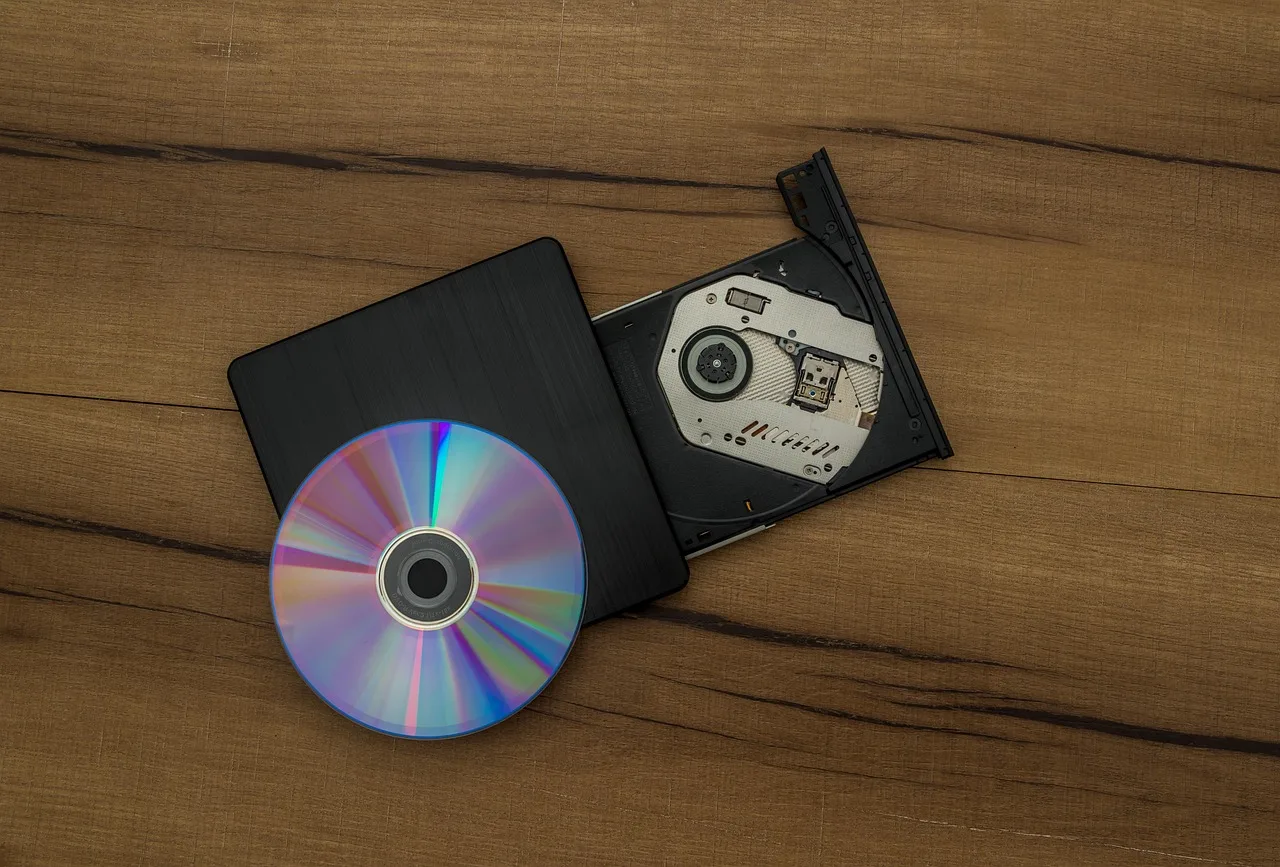
Claims about how long media lasts come from stress testing, not from waiting. The NIST and Library of Congress optical disc longevity testing procedure, published in 2005, documents the method used to study optical media lifetimes under controlled conditions rather than in ordinary use.
The practical consequence for a household is modest but useful. Lifetime figures are laboratory outputs from accelerated conditions, not promises about the disc on your shelf, which has lived through a different history of heat, light and handling. Plan on rotation and copies rather than on any published number.
The other five mistakes
- Discarding originals.A scan is information about an object. The object needs no software and no electricity.
- One copy.Whatever the medium. Two copies in the same house are still one flood or one fire.
- Editing the master.Crop, straighten and color-correct derivatives. Keep the master untouched.
- No file naming or notes.An unlabeled folder of thousands of files is the digital version of an unlabeled shoebox. For example, name files 1972-08-14_wedding_rose_001.tif and store them in folders by decade and event: Family/Photos/1970s/1972-08-14_wedding/.
- Scanning first, sorting never.Scanning is absorbing and feels productive. It is not a substitute for knowing what you have.
| Mistake | When you find out | Recoverable |
|---|---|---|
| Media degradation | When a file fails to open | Sometimes, with software |
| Single copy | When the drive fails | No |
| Original discarded | Years later | No |
| Master overwritten | When you need a better version | No |
| No naming scheme | Immediately, then forever | Yes, tediously |
The habit that prevents most of it
Twice a year, open a handful of files chosen at random from different parts of the collection, confirm they display, and confirm the copy is readable. Our notes on formats and storage media cover what those copies should be on, and the guide to what digitizing costs after the scanner covers why this is an ongoing obligation.
Copies need media you can buy. Typical planning ranges, not quotes: a 2 TB external hard drive costs $60 to $90. Cloud storage for 2 TB costs $60 to $100 a year. Archival optical discs such as M-DISC cost $3 to $5 each. Prices change, so check current listings.
Twice-yearly collection check
- Open random files from different parts
- Confirm each file displays
- Confirm second copy exists
- Repeat twice a year